
CRM
Who your customers are and what you are trying to sell them: the companies and the people in them, deals moving stage by stage, what was said to whom, the follow-ups that chase the ones going quiet, and the tasks that come out of it.
Getting started
These are the steps in the order somebody would do them. The same list is in the tool: press F1, or the control reading "How this works" at the top of the window.
1. Open a deal with New deal, then move it along the board
New deal takes a name and lands it in the first stage; everything else can be filled in later. The columns are the stages it passes through: drag a card to another, or press Move in the panel. The move is written onto that customer's own record.
2. Add the customer, then open their page
New customer takes a business, a person, or both - fill in both and the person is filed under the business, so nobody types anything twice. Clicking a business opens its own page beside the list: what is in play, what has closed, everything still open against it or anybody at it, and when anything last happened. Clicking a person opens theirs.
3. Answer the mail, and log what was said
The Inbox reads a mailbox somebody connected on the Set up page. Every conversation says in one line why it is in front of you, and you reply, make a task, put it against a customer or file it away; done there is a Keyway word and leaves the mailbox as it is. A call or a meeting is logged on the customer instead, and one of the days under it opens the follow-up task with it.
4. Open tasks, and add the colleagues they belong to
Tasks are grouped by when they are due, with overdue first. One attached to a deal also shows on that customer's history, so what you promised and what you are doing about it sit together. Open Set up, then Who works here to add your own staff and give them deals or tasks.
5. Chase the ones going quiet, one message at a time
Open Set up, then Sequences to write the scripts and steps. Put a customer on a sequence and they appear on Follow-ups when a step falls due. Nothing sends by itself: you read the finished message, press the button, and one message goes. There is a ceiling on how many go out in a day.
6. Read the overview when you want to know how it is going
Press Overview on Pipeline to see its value by stage, what moved, which deals went quiet and which customers nobody has touched at all - press one of those and you land on their page. Every alert names the rule that fired it and what was counted, so it is arguable rather than a colour.
7. Find anything, from any screen
The box at the top right narrows whichever list you are looking at - businesses, people, deals on the board, tasks, colleagues. Type two things you remember and both have to match, so "ridge sam" finds Sam at Ridgeline. Ctrl+F puts the caret in it, and Shift+F1 lists every key this window answers.
The screens, and what to do first on each
Each of these opens with nothing on it on a new install. What the tool says on that screen is what this section says, because it is the same sentence.
No deals on the board yet
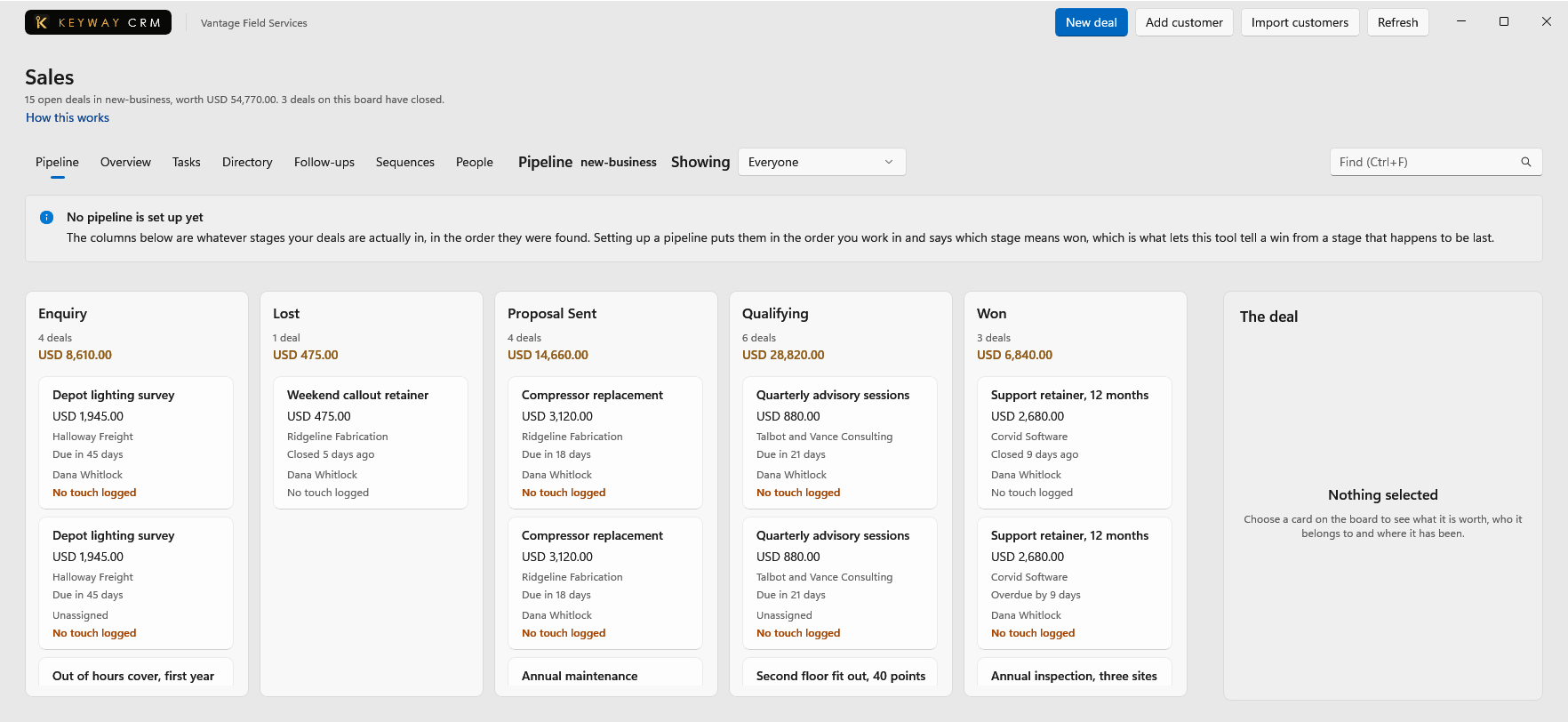
The board is your deals arranged by the stage each one has reached. A deal is one piece of work you are trying to win, and a name is all New deal needs: the customer, the value and the closing date can each be left empty.
First thing to do: Press "New deal", write what it is, and open it. It lands in the first stage.
No mailbox is connected yet
This reads a mailbox your business already has - Microsoft 365 or Google Workspace - and shows what needs an answer, with the reason beside it. Keyway keeps a copy on this machine so it is searchable offline; nothing is sent, flagged or filed away without somebody pressing something.
First thing to do: Somebody who administers the mailbox connects it on the Set up page in the hub.
No companies or people yet
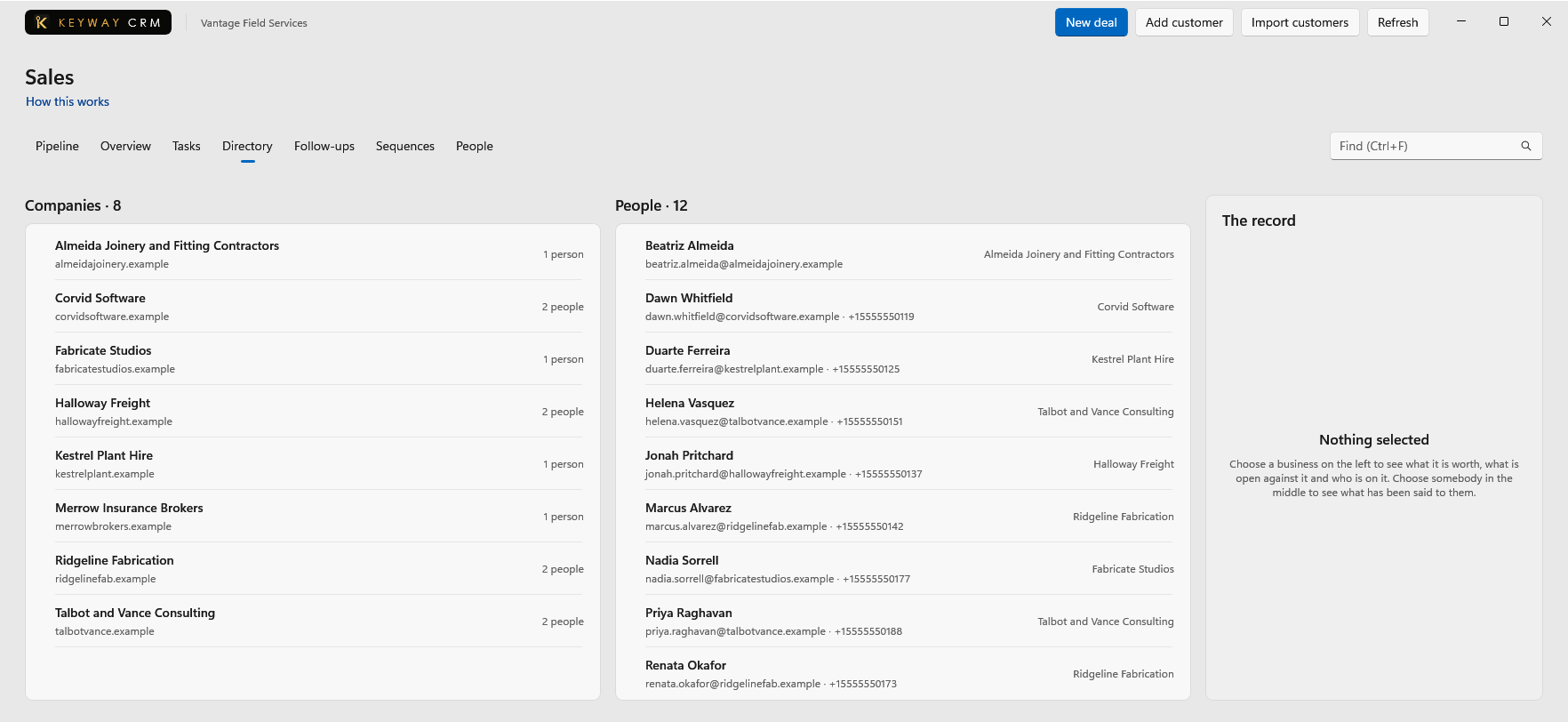
The customers this organisation holds: the businesses you invoice and the people you deal with at them. Clicking a business opens its own page - what is in play, what has closed, and everything still open against it.
First thing to do: Press "New customer". A business, a person, or both - both are linked for you.
Nobody is on this list yet
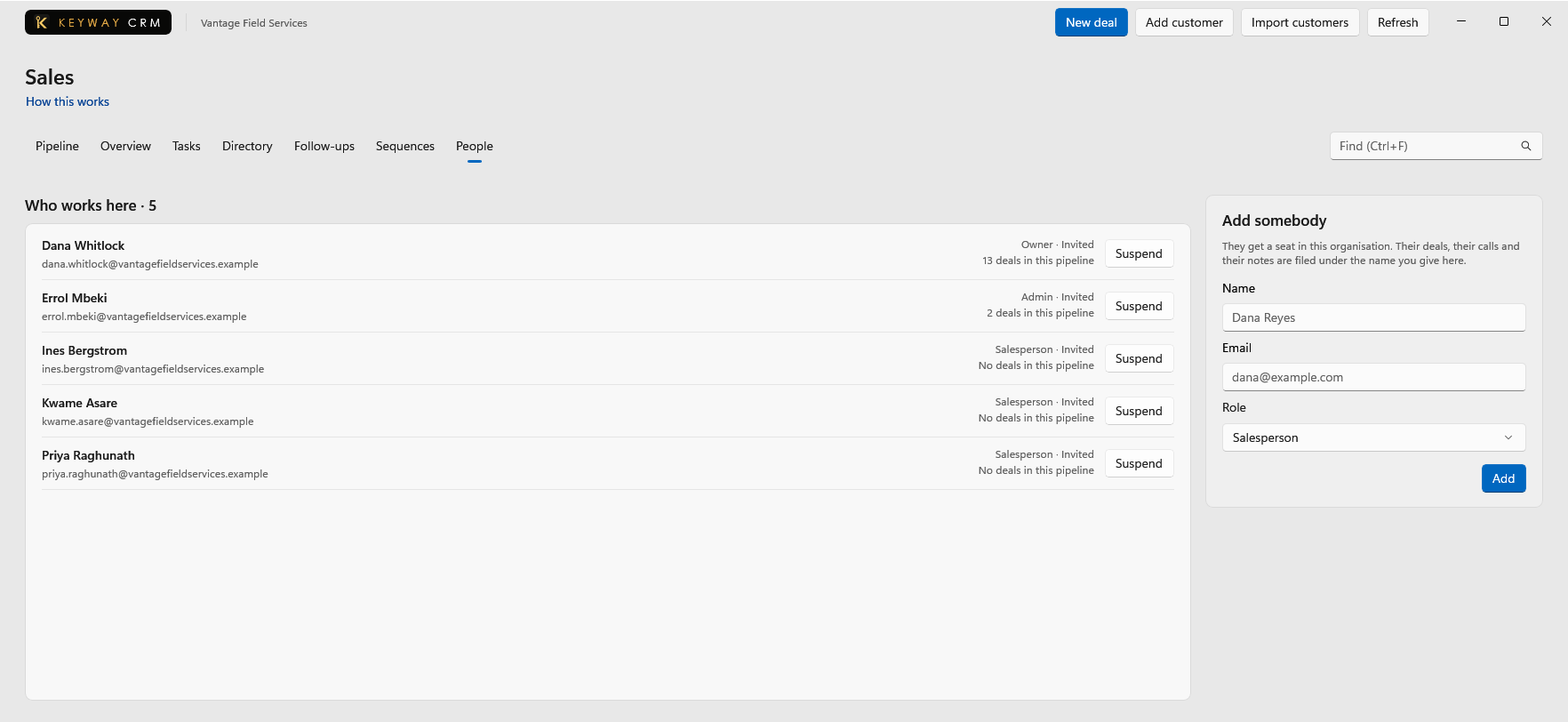
The people who work here, as opposed to the people you sell to. Adding somebody is what lets a deal or a task be assigned to them, and what lets the board be narrowed down to one person's work.
First thing to do: Press Add people in Set up: the Keyway hub opens at the step that adds them.
Nothing on the task list
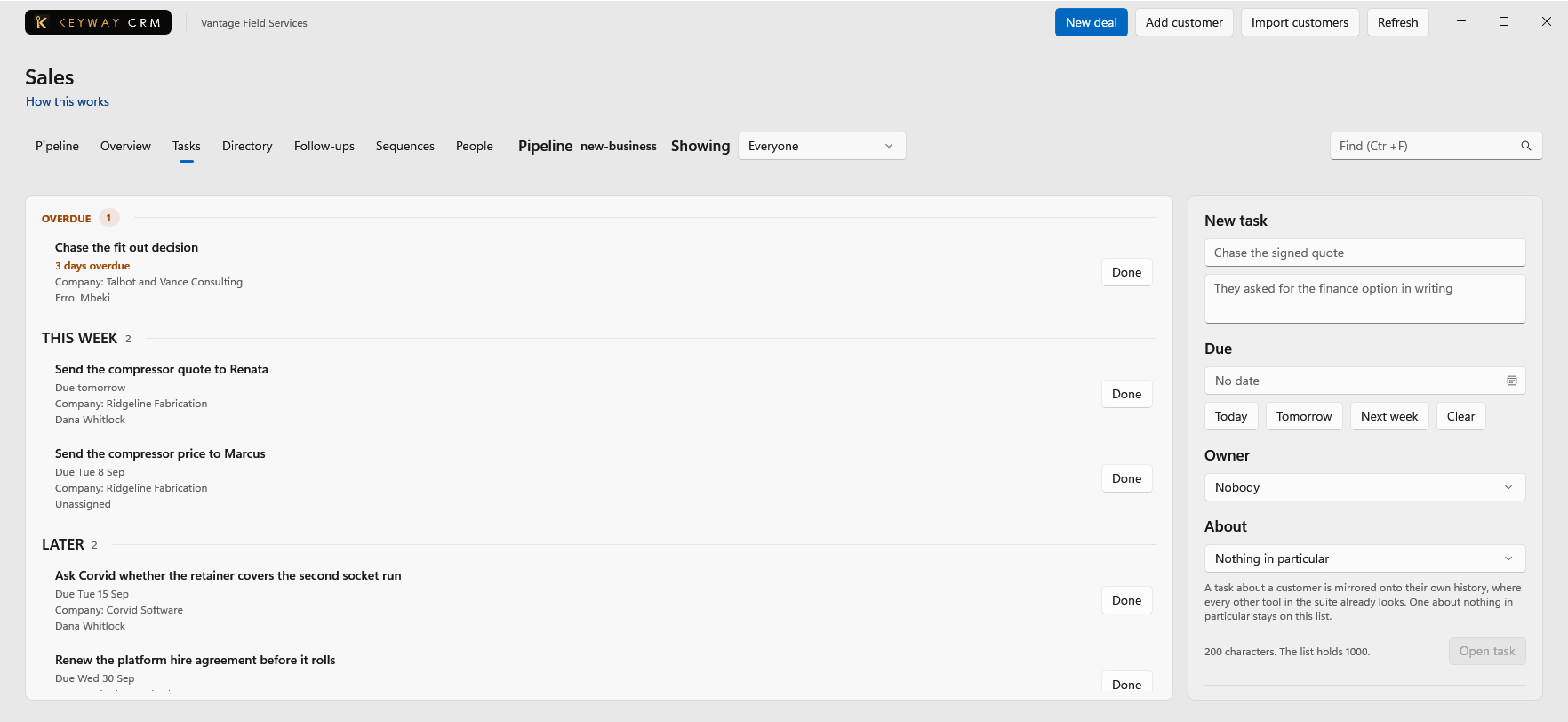
What has to be done, grouped by when it is due with overdue at the top. A task attached to a deal also appears on that customer's history, which is what stops a promise and the work behind it living in two places.
First thing to do: Write one task, press Today, and open it. It is the smallest useful thing here.
No sequences written yet
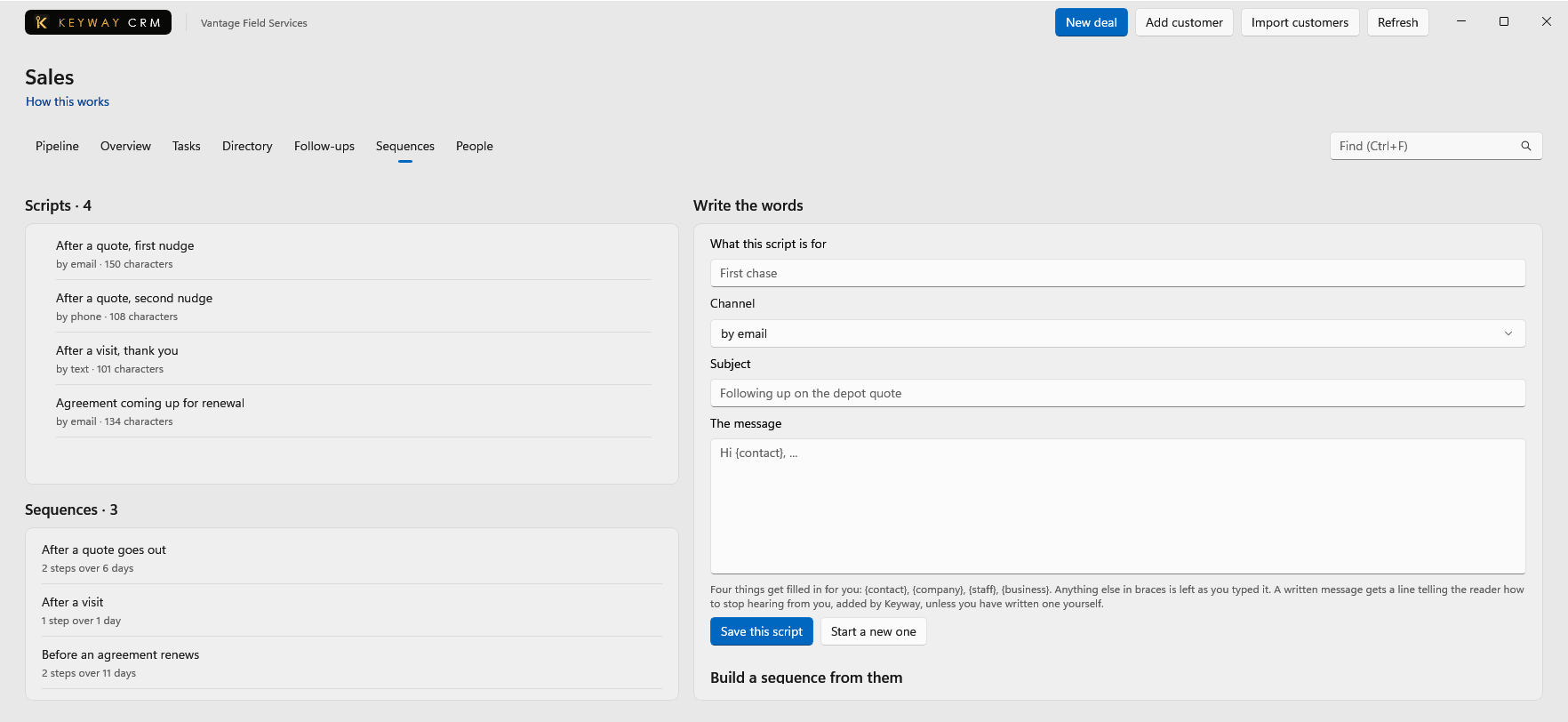
A sequence is a list of steps - so many days after the last, on a channel, using a script you wrote - and it is where the Follow-ups list gets its work. Scripts are written once and used by as many steps as you like.
First thing to do: Write one script, then a sequence with one step in it. Two is enough to be useful.
Nobody is due a follow-up
The customers a sequence says are due a touch today, with the finished message beside each one. Nothing here sends by itself: you read one message, press the button, and one message goes. There is no schedule and no batch, which is what makes the list worth trusting.
First thing to do: Open Set up, then Sequences to write a plan, and put a customer on it from their own page.
Nothing to report yet
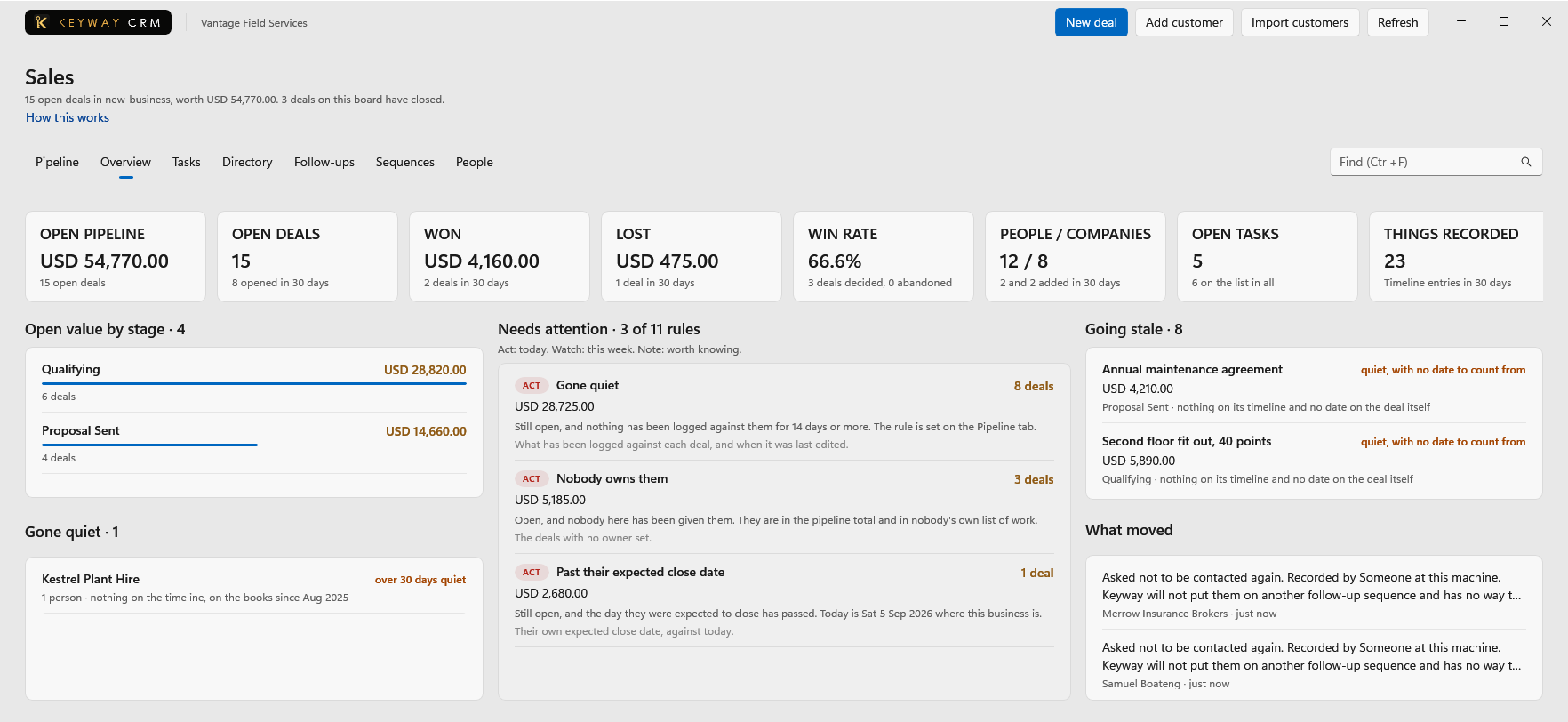
What the open pipeline is worth by stage, what moved recently, which deals have gone quiet and which customers nobody has touched. All of it is counted from your records and their history, so it has nothing to say until there are some.
First thing to do: Put a deal on the board and log one touch against it. Both are counted here.
If you get stuck
Write to support@keywaysuite.com. We answer within one business day. Keyway can send us what it knows about your installation: open the hub, go to About and press Get support. It writes one file wherever you choose and never includes your licence, a password, a customer name or a customer address.