
Checks
A routine somebody has to perform and sign off - a vehicle walk-round, an opening routine, a monthly equipment check - and the permanent record that it was done, on a date, by a person, against a particular thing.
Getting started
These are the steps in the order somebody would do them. The same list is in the tool: press F1, or the control reading "How this works" at the top of the window.
1. Press New sheet for a routine you already do
A sheet is the questions. It is one routine your business already does, written down as the lines somebody answers in order. Every check taken from it records the wording that was in force on the day, so revising a sheet never rewrites what somebody was actually asked.
2. Say how often it is due
Every day, every week, every month, or only when somebody needs it. The Due screen works out what is overdue from the last check taken against each thing, so a sheet you set to "when needed" never chases anybody.
3. Take a check
One performance of the sheet: the date, who did it, what it was against, and an answer to every line. It is written to this machine the instant it is taken, so a yard with no signal is not a reason a check cannot be done.
4. Put a failure right
A line that failed can be raised as a corrective action: what failed in the wording that was in force on the day, who has to deal with it, by when, and what closing it takes. The inspection is never rewritten, and the action's closure goes on the record beside it.
5. File it
Filing writes the check into your organisation's document store, where it outlives this tool and can be handed to whoever asks for it. Anything that has not got out yet sits on the Held screen and is sent again on its own.
The screens, and what to do first on each
Each of these opens with nothing on it on a new install. What the tool says on that screen is what this section says, because it is the same sentence.
No sheets yet
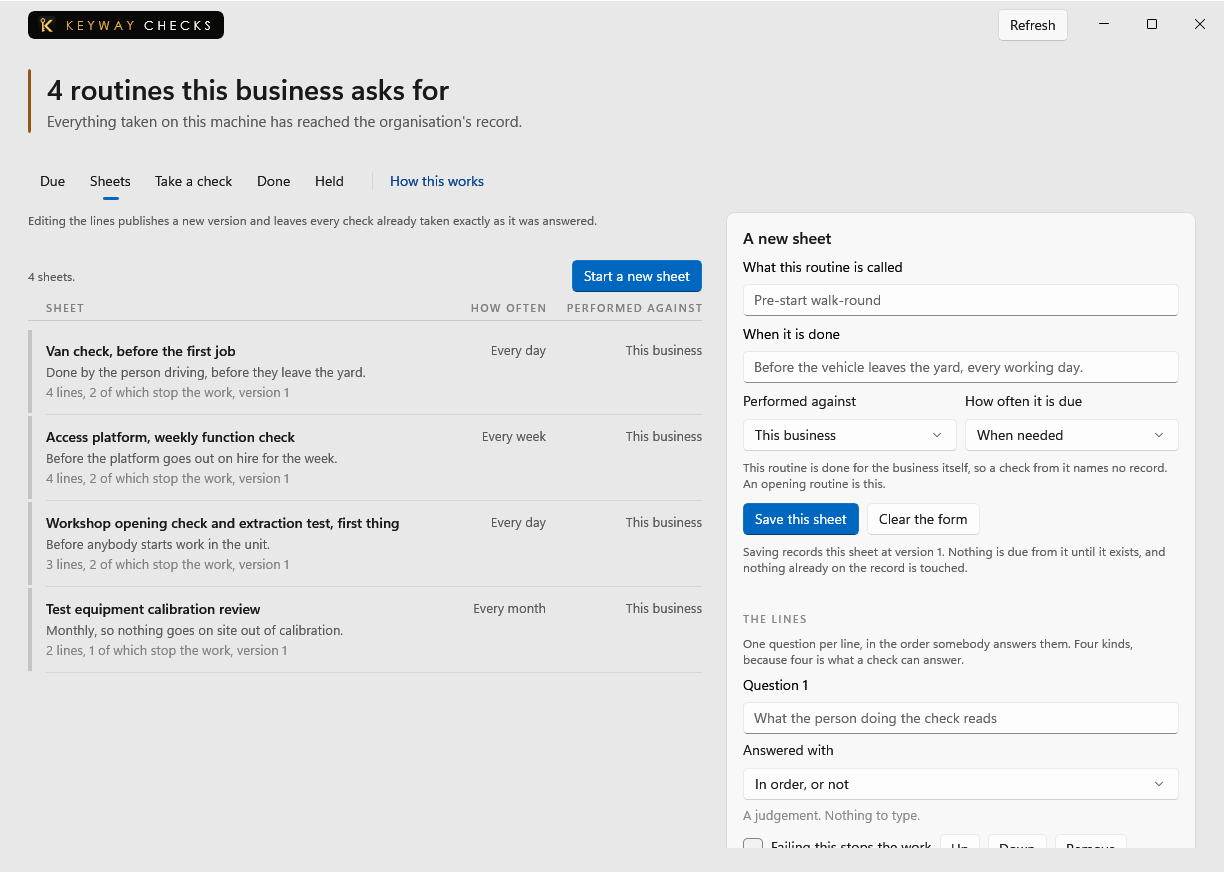
A sheet is the questions a check asks: the lines somebody answers, in order, and how often it is due. Nothing can be checked until one exists.
First thing to do: Start one for a routine you already do, and keep it to the lines that matter.
Nothing is due, because nothing has been asked for yet
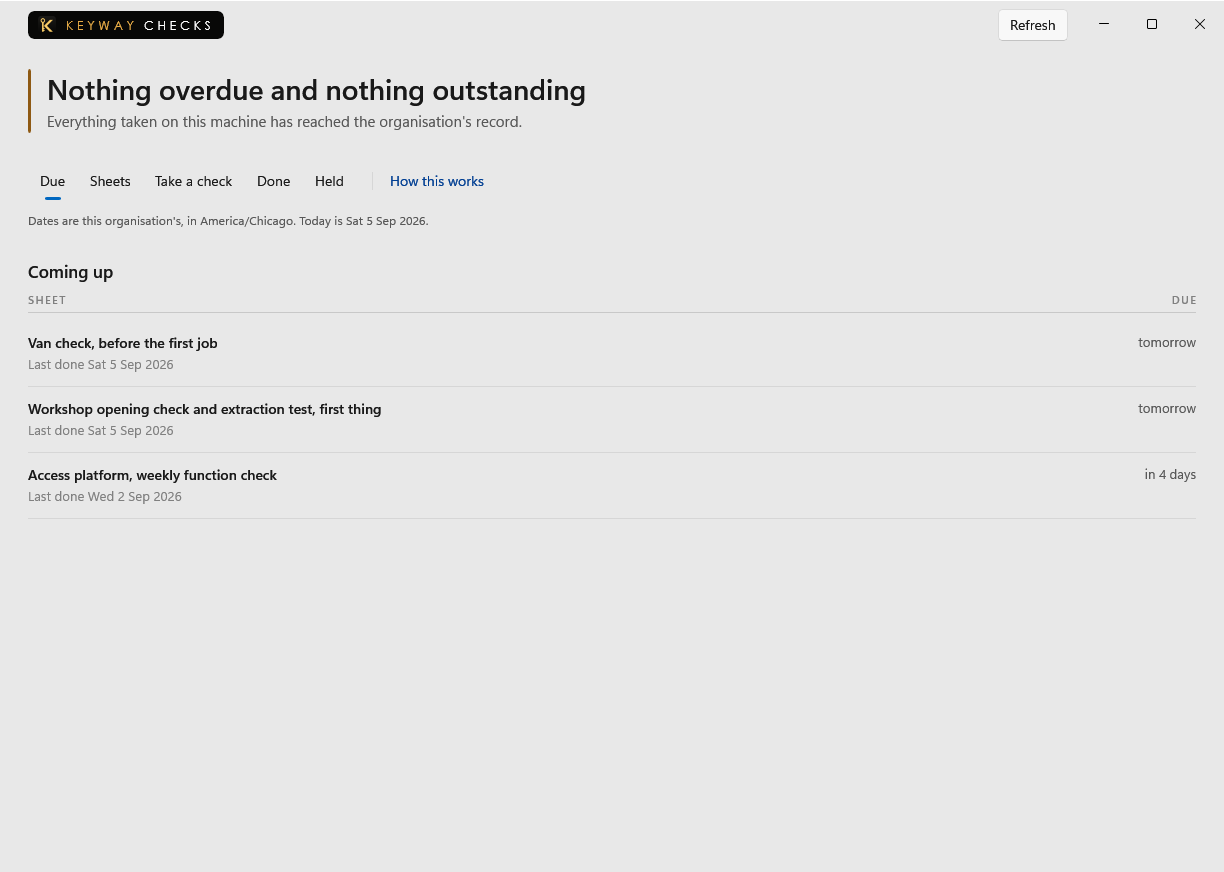
What is overdue and what is coming up are worked out from each sheet's cadence and the last check taken against each thing, so nothing can be due until a sheet exists.
First thing to do: Start a sheet on the Sheets screen for one routine your business already does.
There is no sheet to take a check from
Taking a check is answering one sheet, once, against one thing, on a day. The lines you answer are the sheet's, so a sheet has to exist before there is anything to answer.
First thing to do: Start one on the Sheets screen, then come back and answer it.
Nothing has been checked yet
Every check that has been taken appears here, newest first, stored exactly as it was answered and with the sheet wording that was in force that day.
First thing to do: Write a sheet on the Sheets screen and answer it on Take a check. A check lands here the moment it is recorded.
Nothing has been raised yet
When a check comes back with a line not in order, raise an action on it: what failed, in the wording that was in force on the day, with an owner, a day it is owed by and what closing it takes. The check itself is never rewritten, and Done offers the verb on the check that came back wrong.
First thing to do: Nothing until a check comes back wrong. A failure then reaches Raise an action beside this list on its own.
Nothing is waiting to be sent
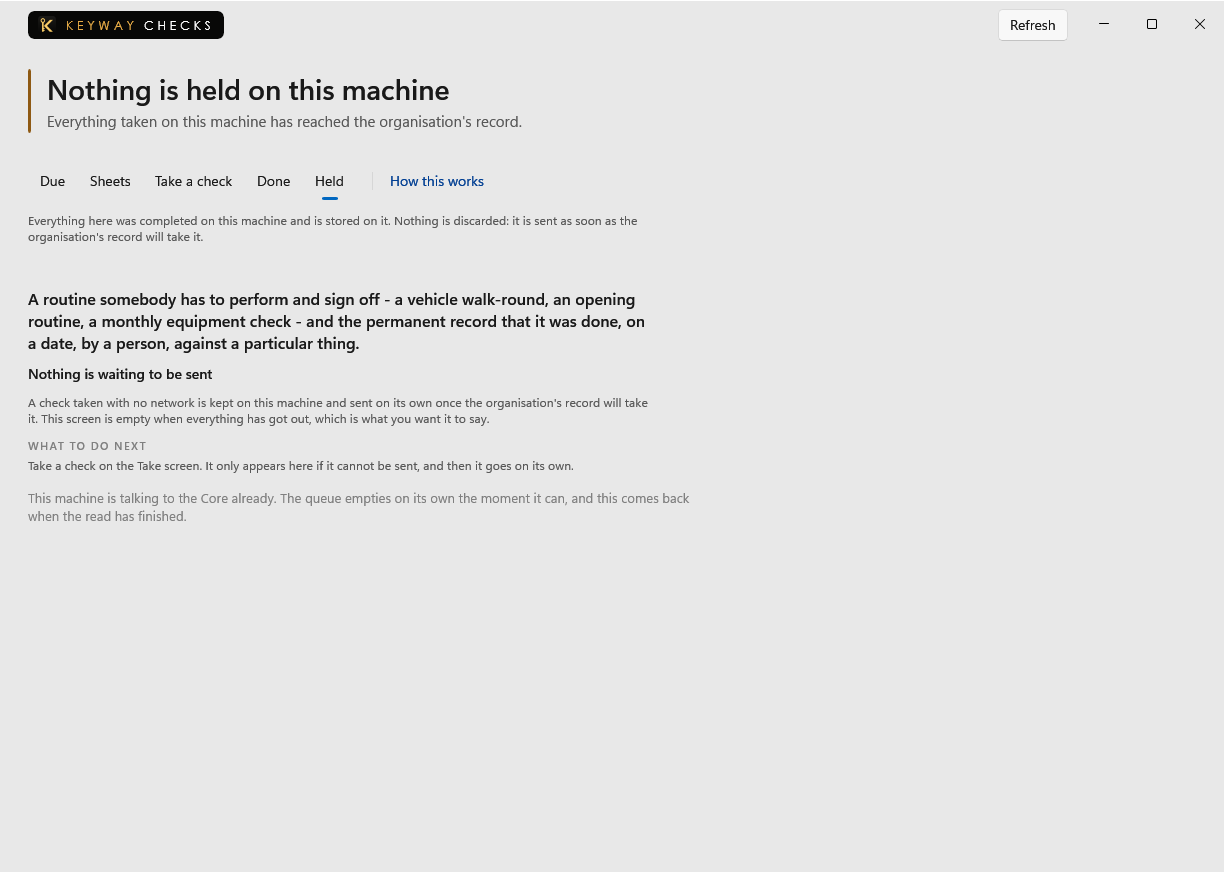
A check taken with no network is kept on this machine and sent on its own once the organisation's record will take it. This screen is empty when everything has got out, which is what you want it to say.
First thing to do: Nothing, and that is the point. An empty queue is the right answer here, so this screen has nothing to press.
If you get stuck
Write to support@keywaysuite.com. We answer within one business day. Keyway can send us what it knows about your installation: open the hub, go to About and press Get support. It writes one file wherever you choose and never includes your licence, a password, a customer name or a customer address.